Reducing Input Lag
Published on March 25, 2026 | category: Competitive Gaming
What is Input Lag?
Input lag is the delay between the physical execution of a command (e.g., clicking your mouse or pressing a key on your keyboard) and the moment that action manifests visually on your monitor. In highly competitive titles like Counter-Strike 2, Valorant, or APEX Legends, a difference of 10 milliseconds can be the deciding factor in a gunfight. A high-end 360Hz monitor is useless if the system itself is bottlenecking your physical input.
Source 1: Peripherals and Polling Rates
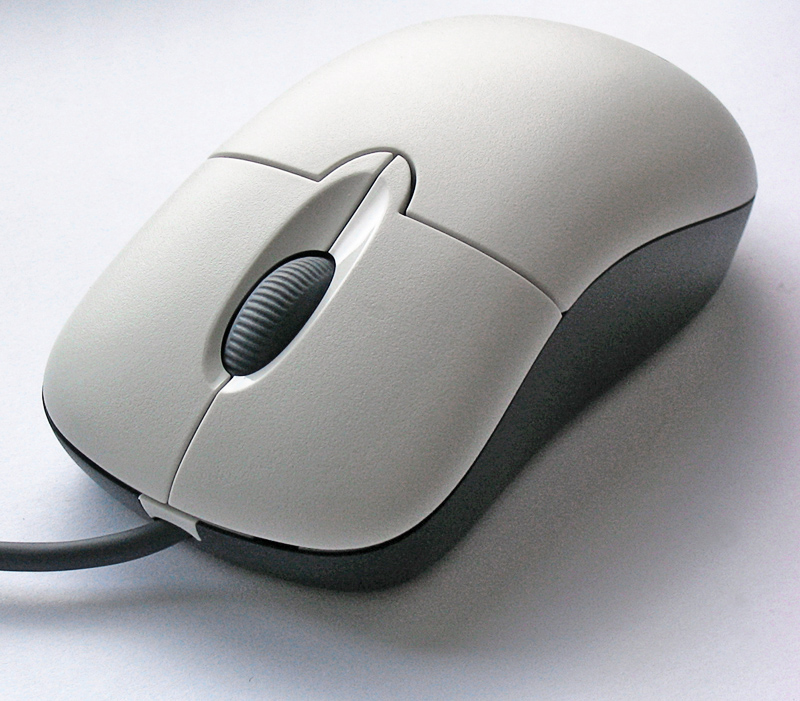
The first link in the chain is your hardware. A mouse with a 125Hz polling rate updates its position to the computer 125 times a second, which introduces up to 8ms of inherent lag. Upgrading to a 1000Hz or 4000Hz mouse ensures the hardware isn't the limiting factor. However, running extremely high polling rates can paradoxically introduce lag if your CPU is not optimized to handle the aggressive interrupt requests (IRQs). This is where OS tuning comes into play.
Source 2: DPC Latency and Windows Scheduling
Deferred Procedure Calls (DPC) are how Windows manages driver priorities. If a faulty audio driver or a background telemetry task creates a long DPC execution, your mouse's USB interrupt request gets put in a queue. Even if the delay is microscopically short (measured in microseconds), this queuing creates jitter in your aim. Alkile's System Tweaks address this directly by disabling power-saving features like Core Parking that cause CPU sleep-state transition delays, ensuring the CPU is always awake and ready to process game loops.
Source 3: "Enhance Pointer Precision"
We cannot discuss input lag without discussing mouse acceleration. Hidden inside the legacy Windows Control Panel is the infamous "Enhance Pointer Precision" checkbox. This artificial algorithm tries to accelerate your cursor based on movement speed rather than raw distance. For gamers, this ruins your muscle memory because swiping your mouse 5 inches fast will move the crosshair further than swiping 5 inches slowly. The competitive standard is 1:1 raw input, which Alkile enforces instantly at the registry level.
Source 4: The Graphics Pipeline
Finally, your graphics card and monitor render the result. Features like V-Sync force the GPU to hold onto rendered frames until the monitor is ready for its refresh cycle, which adds tremendous "floaty" input latency. Disabling V-Sync is mandatory, although newer technologies like NVIDIA Reflex or AMD Anti-Lag hook directly into the game engine to optimize the GPU queue and reduce render latency without causing screen tearing. Activating these features in-game, alongside Alkile's OS-level tuning, creates the ultimate low-latency environment.
Conclusion
Achieving zero input lag requires a systemic approach. Buying a faster mouse won't circumvent Windows' aggressive background scheduling, and disabling V-Sync won't help if your USB ports are sleeping to save power. Alkile gives you an absolute baseline of optimized OS performance, allowing your mechanical skill to truly shine without artificial delays.
USB Hubs and Interface Desync
As a final note towards mastering input latency, never plug your primary gaming mouse into a peripheral hub, monitor passthrough, or front-panel chassis port. These secondary controllers introduce tiny but measurable host-controller routing delays. Always connect high-polling devices directly into the rear I/O USB ports located closest to the CPU socket (often designated as BIOS flashback ports). Coupled with Alkile's 'Disable USB Selective Suspend' functionality, this ensures your input is never subject to physical or software-based hibernation routines during crucial gameplay moments.